
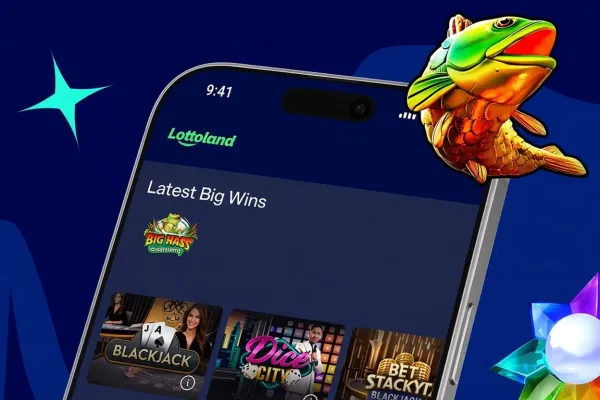
Lottoland has an app for iOS, so the Lottoland app on an iPhone is a real option, not a browser shortcut. This page explains what the app offers on a phone, how to install it from the App Store, and what to check on your device before you play. The app sits alongside the mobile site and the Android app, so you can choose the way that suits your phone. You can also visit Lottoland directly from your phone's browser.
What you can do on your phone
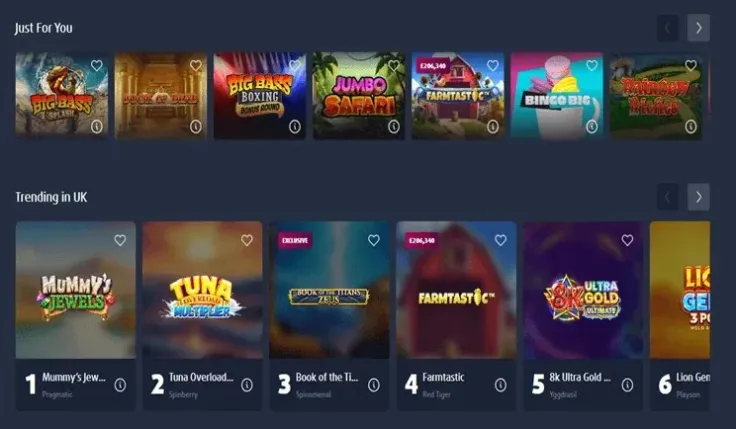
The Lottoland app is designed for use on a phone, so you can open it and play from your iPhone without using a computer. The mobile site is also available, and it runs in the phone's browser. If you want to compare the browser and the app, the mobile version page explains how the site works on a small screen.
Before you choose between the app and the browser, check the games and features you want. The desktop site and the app may not offer exactly the same range, so look at the game pages on this site and confirm that the game you want is available on the platform you plan to use.
Some games are fast to load on a phone and others take longer, depending on your connection and the device. A stable mobile connection makes a bigger difference than a slightly newer phone, so try a game on a short session first and see how it runs before you commit to a longer one.
Slots, table games and other games follow their own rules whatever the platform. Read the game's paytable and information panel once before you play, because the rules and the maximum win are the same on a phone as on a computer.
How to install the app on iPhone

Open the App Store on your iPhone and search for Lottoland. Check that the app listing matches the name Lottoland before you tap Get. Wait for the download to finish, then open the app from your home screen.
Log in with your existing account. If you do not have one yet, use the sign up page to create an account, then return to the app and log in. The app needs a working internet connection for the first sign-in, so connect to Wi-Fi or mobile data before you start.
If the app does not install or open, check that your iPhone has the latest system software and enough free storage. Restart the phone and try again. If it still does not work, the mobile site is available in Safari, so you can continue there while you sort out the app.
For Android phones, the app is described on the Android app page, which covers the installation steps for that platform.
Using your account safely on a phone

Protect your iPhone with a passcode or Face ID, and set the phone to lock automatically after a short time. Do not share your device or your passcode, and do not let anyone else use your account on the phone. If you use a shared device, log out when you finish.
Use a trusted connection when you log in. Mobile data or a home Wi-Fi network is a safer choice than an unknown public network. Keep the iPhone's system software updated, because updates often include security fixes that protect the device.
Mobile data costs depend on your plan. If you play on mobile data, check how much data a session uses and keep an eye on your allowance, especially when you play video or live games.
Before you start, look at the account's control tools. Every UK-licensed operator offers deposit limits, time-outs and self-exclusion, and GAMSTOP covers all UK-licensed online operators. Set your limits before you play rather than after a session has started. The safer gambling page explains each tool, and GamCare runs the National Gambling Helpline if you want to talk to someone about how you play.